DLP in Copilot web search

Microsoft 365 Copilot potentially offers productivity gains, but it also introduces new and slightly more subtle risks. One of these is how Copilot uses external web services as grounding when relevant internal answers are missing.
Now, Microsoft has introduced new DLP functionality in Purview that allows you to stop Copilot from using web searches when the prompt contains sensitive information. It may sound small, but this is a very important control point for many organizations.
In this post, I take a closer look at the "Prevent Copilot from processing content > Performing Web Searches" feature, what it actually does, and when you should use it.
What is the real problem?
When a user asks Copilot a question, Copilot always tries to provide the best possible answer based on available sources. If there is no good internal context, Copilot can use external web search as support.
The problem occurs when the user unknowingly includes sensitive information in the prompt, for example:
Personal Data
Customer Identifiers
Case Number or Contract Details
Custom Internal Terms
Without controls, such data could in practice be used as part of an external web search. Although Microsoft protects data and does not train models on customer content, this is still an unwanted data flow for many businesses, especially in the public sector and regulated industries.
What does this DLP functionality do?
This new DLP action does something quite specific:
If a Copilot prompt contains defined sensitive information types, external web search is blocked as a grounding source for that particular prompt.
It’s important to note what happens and what doesn’t happen:
Copilot still responds to the prompt
Internal Microsoft 365 data can still be used where permitted
External web search is explicitly disabled for the prompt
This is not a hard stop, but a risk-reducing restriction.
The difference between the various Copilot DLP actions
Microsoft now has several different DLP actions for Copilot, and they cover different scenarios:
Prevent Copilot from processing content > Processing prompts - Stops Copilot from responding completely when the prompt contains sensitive information.
Prevent Copilot from processing content > Performing Web Searches - Allows responses, but without external web grounding.
Prevent Copilot from processing content based on sensitivity labels - Prevents files and emails with specific labels from being used in the response basis.
How to configure this in Purview
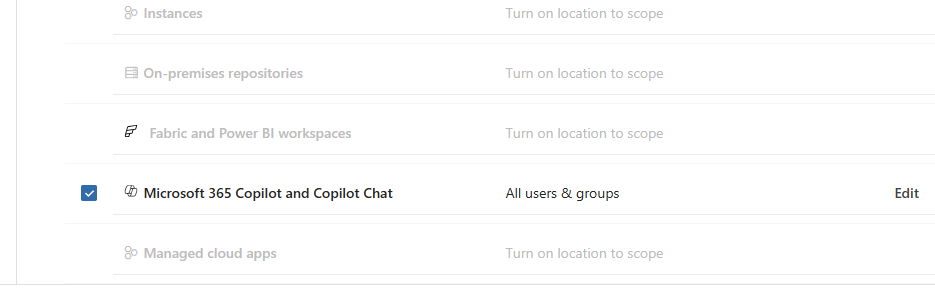
The configuration is done in Microsoft Purview through a custom DLP policy.
Overall flow:
Go to Data Loss Prevention in Purview
Create a new Custom policy
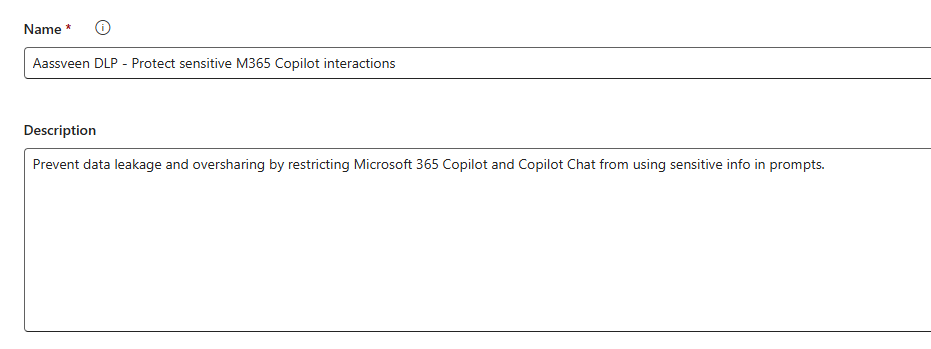
Select location Microsoft 365 Copilot and Copilot Chat
Add the condition
Content contains > Sensitive information types
Select relevant SITs

Under Actions, select
Prevent Copilot from processing content > Performing Web Searches

Configure policy tips or alerts as needed
Publish the policy
Using custom SITs
This is where the feature really becomes powerful.
By using custom sensitive information types, you can prevent web searches when the prompt contains (for example):
Internal case numbers
Customer names in specific formats
Project codes
Domain specific terms
Finally, it is worth emphasizing how crucial it is to spend sufficient time defining good sensitive information types. The quality of your SITs directly determines how accurate these Copilot controls (and other DLP rules!) will be. Definitions that are too broad or general will result in many false positives, while definitions that are too narrow will allow real risk to go undetected. Good SIT design requires an understanding of your business’s data, language, and actual usage patterns.
Bjørnar&AI

Comments